

Wireless HDMI Display Dongle Adapter – Miracast Dongle with AirPlay DLNA, for Video/Audio Streaming from Phone, Laptop to HDTV, Monitor, Projector
$49.99
Related Products




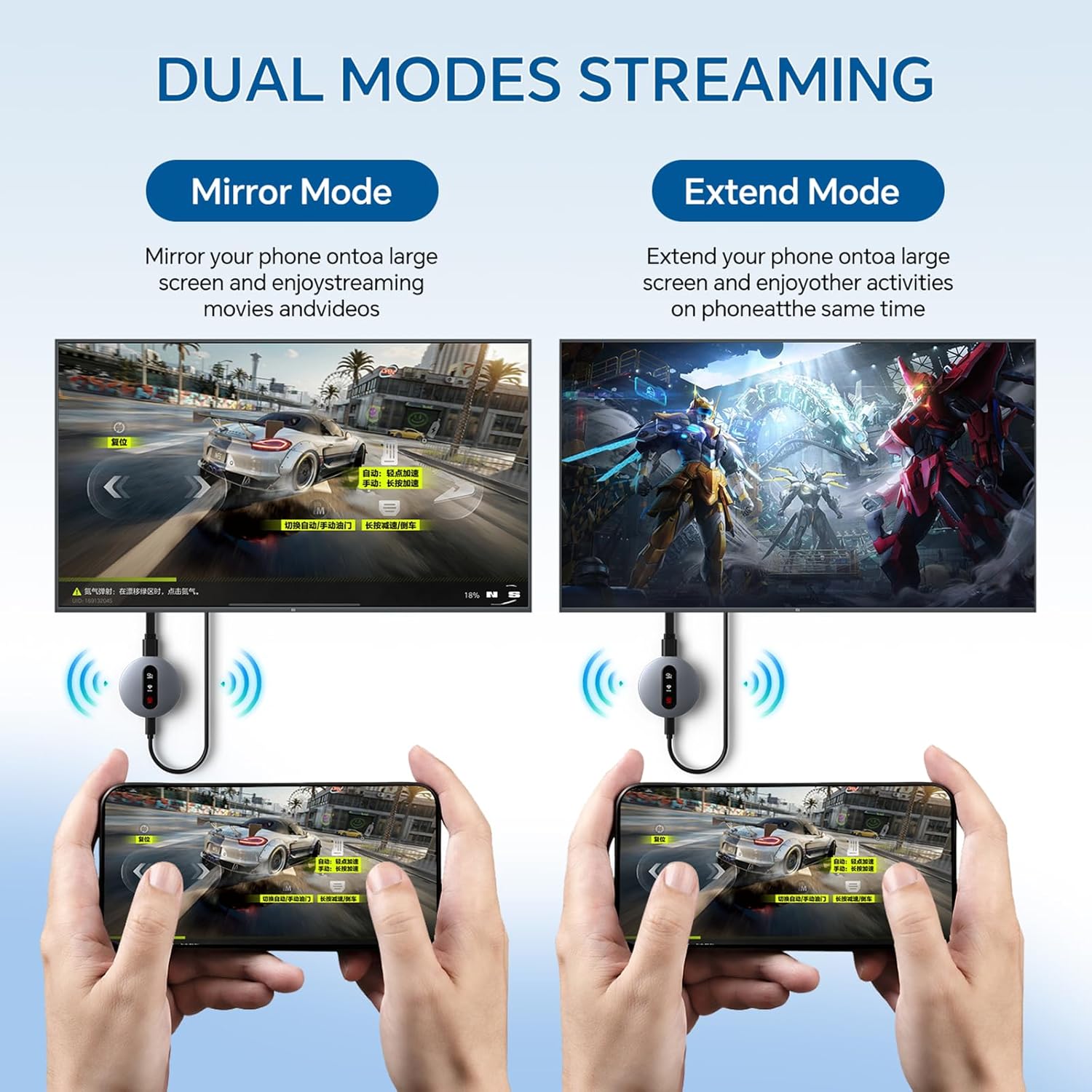
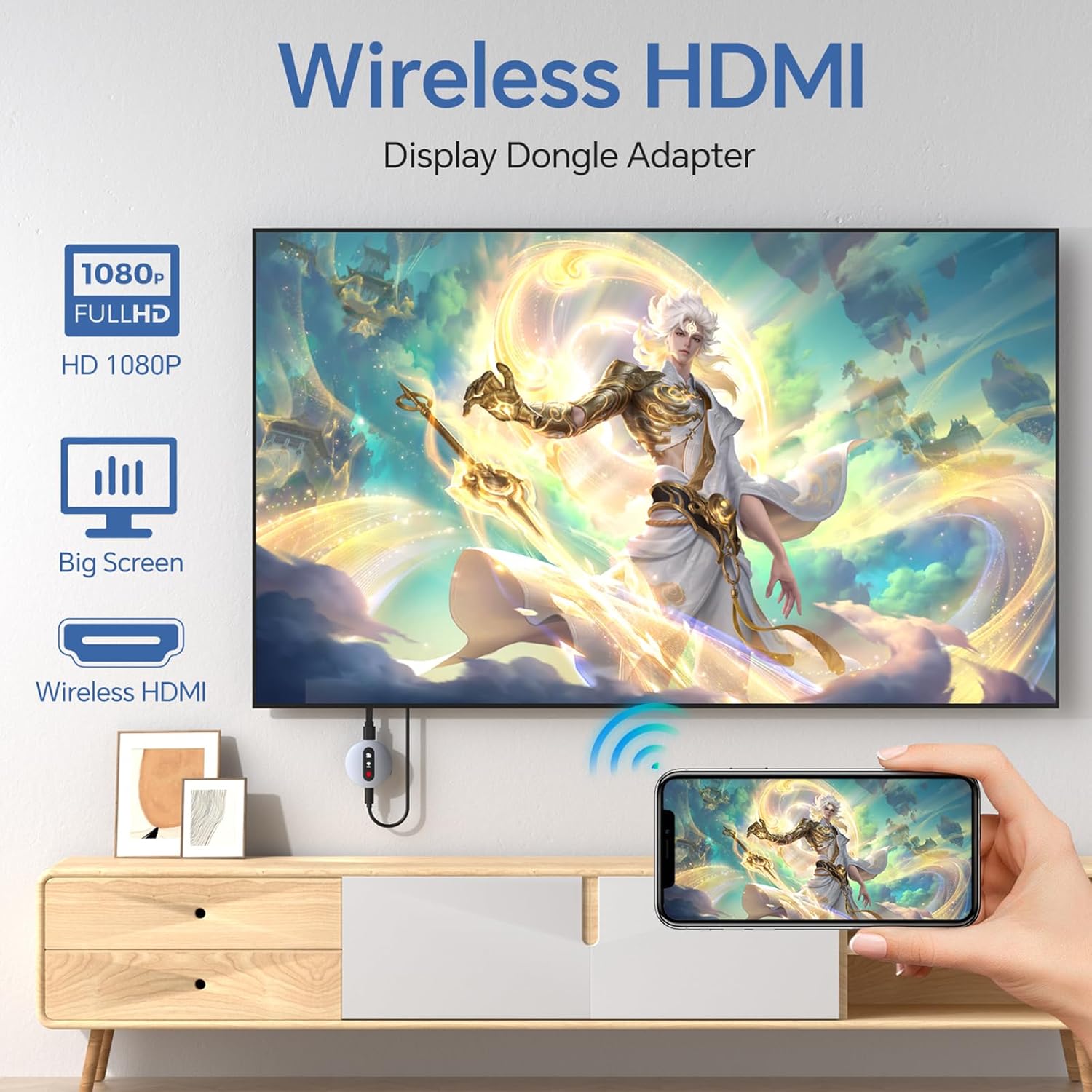

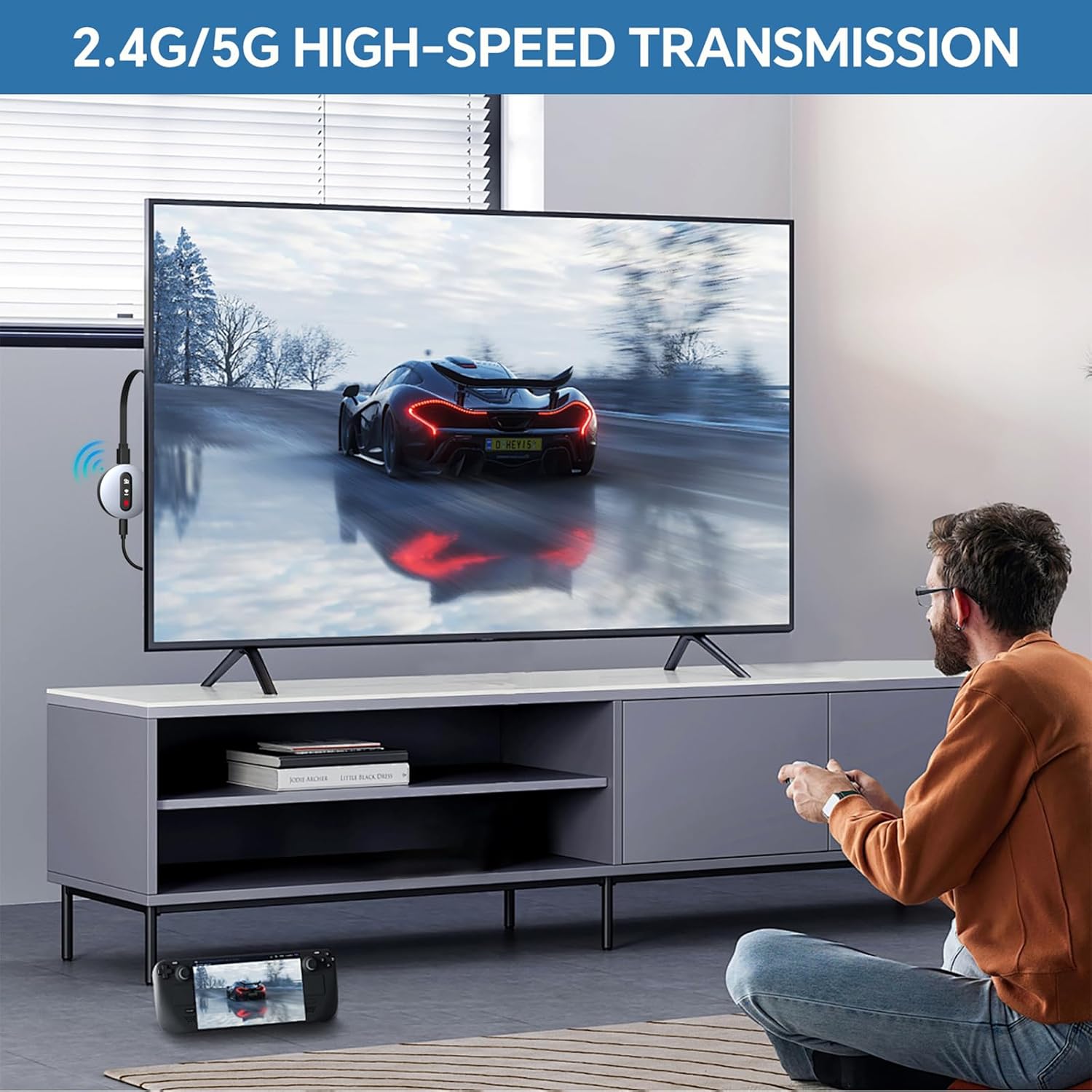
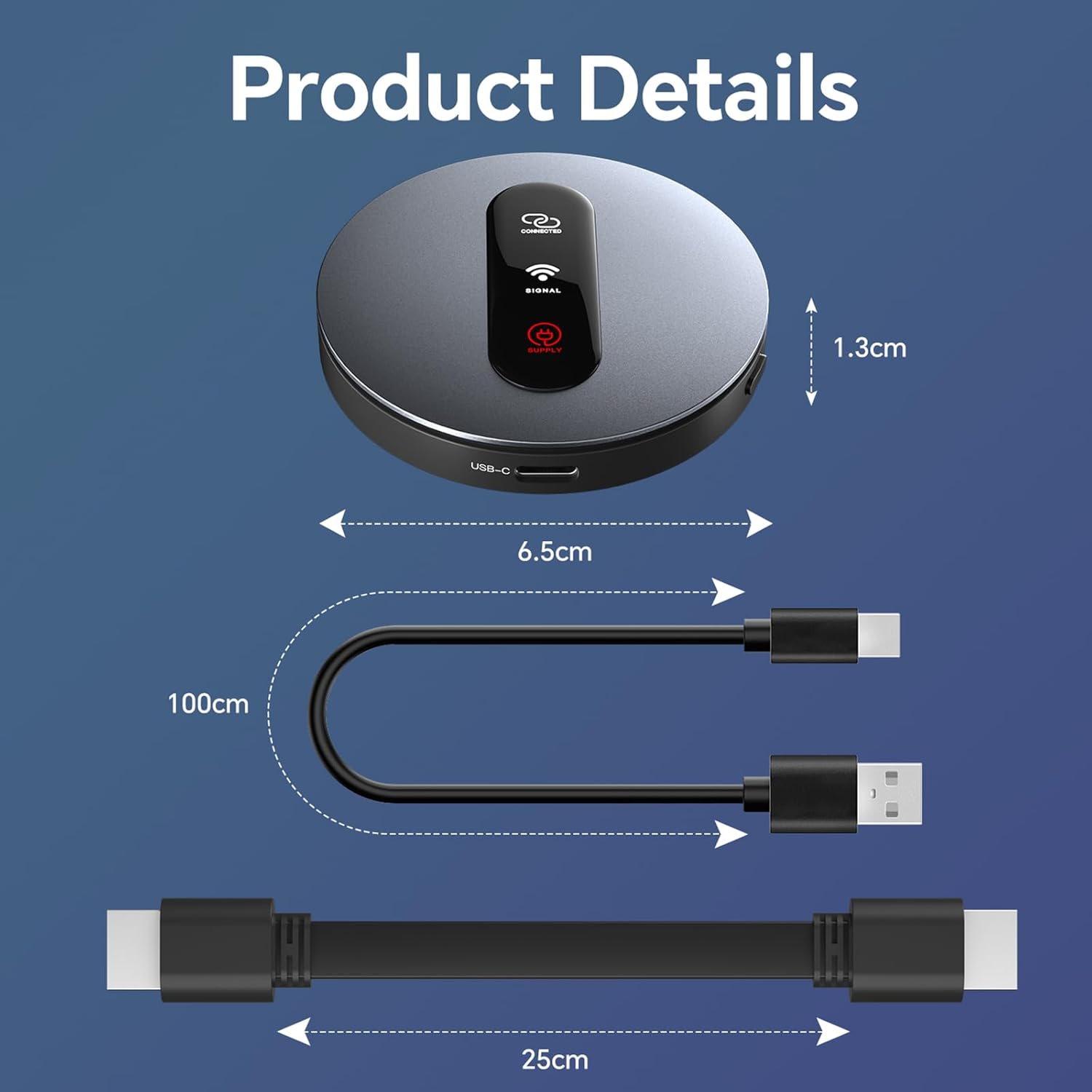
Product description
Miracast | AirPlay | DLNA Wireless HDMI Adapter

Activating DLNA Mode
1. Switch to DLNA Mode
Use the front button to set the device to start in DLNA mode.
2. Connect to the Device Hotspot
On your smartphone, go to Settings > Wi-Fi.
Find and connect to the hotspot named “MirascreenPro-XXXX”.
Enter the password shown on the screen.
3. Connect to Your Router
After connecting, go back to the home screen and open your web browser.
Enter the URL: 192.168.203.1 and press Enter.
Select SCAN to search for available Wi-Fi networks.
Choose your router’s network, enter the router password, and wait a moment for the connection to complete.
Note:
The initial network setup is only needed once. After that, the device will automatically reconnect to your Wi-Fi.For the best experience, connect the device to a 5GHz Wi-Fi network.
.


Using DLNA on Android & iOS
1. Start Playback
Open your preferred video or music app (e.g., YouTube or TikTok) and start playing your content.
2. Activate Streaming
Tap the DLNA/AirPlay icon (usually found in the upper right corner).
Find and select “MirascreenPro-XXXX” to begin DLNA/AirPlay streaming.

For iOS Devices (AirPlay)
Ensure P2P Mode: The device should be in P2P mode (default startup mode).Open Control Center on your iPhone/iPad.Tap Screen Mirroring and select “MirascreenPro-XXXX”.Enter the password shown on your screen (required only for the first connection) to start mirroring.
For Android Devices (Miracast)
Ensure P2P Mode: Use the front button to switch the device to P2P mode.On your Android device (Android 4.4 or later with Miracast support), enable screen mirroring: Open Settings → Connected devices → Connection preferences → Cast (path may vary by device). Alternatively, swipe down to open the quick panel and tap Smart View, Cast, or Wireless Display.Select “MirascreenPro-XXXX” from the list to start mirroring.
.

For Mac Devices (AirPlay)
Ensure P2P Mode: Confirm the device is in P2P mode.Click the AirPlay icon in the menu bar of your Mac.Select “MirascreenPro-XXXX” to begin mirroring.
For Windows Devices (Miracast)
Ensure P2P Mode: Verify the device is in P2P mode.(For Windows 8.1 and later, ensure your system supports Miracast.)Press Windows + K to open the Connect panel (or Windows + P for projection options).Select “MirascreenPro-XXXX” from the list of available wireless displays.Wait a few seconds for the connection to complete and your screen to appear.

Friendly Reminder:
Before connecting, use the toggle button to select the correct mode for your system. This device supports a stable transmission range of up to 13–15 feet, ideal for home entertainment, business meetings, presentations, and group gatherings.

【Instant Wireless Screen Sharing】Experience seamless screen sharing without any additional apps, drivers, or Wi-Fi setup. Simply plug into the HDMI port and press the “Mirror” button to start streaming videos, music, and files within seconds.
【Universal Cross-Platform Support】This compact wireless HDMI adapter supports AirPlay for iOS and Mac systems, along with Miracast for Android and Windows devices, offering true versatility across all your gadgets.
【Wide Compatibility】Compatible with all HDMI-enabled displays including HDTVs, monitors, and projectors. Enjoy vibrant 1080p Full HD video at 60Hz for a truly immersive viewing experience. Easily switch between landscape and portrait modes to best match your content. Perfect for conference rooms, home theaters, and educational settings.
【Dual-Band Stable Connection】Equipped with 2.4G + 5GHz dual-band antennas and an advanced stability engine, this HDMI wireless extender delivers smooth, interference-free streaming even in busy network environments for a reliably lag-free experience.
【App Limitations】Please note: Due to HDCP copyright protection, some streaming apps—including Netflix, Amazon Prime Video, Hulu, and others—may not allow screen mirroring.
[
8 reviews for Wireless HDMI Display Dongle Adapter – Miracast Dongle with AirPlay DLNA, for Video/Audio Streaming from Phone, Laptop to HDTV, Monitor, Projector
Add a review
$49.99
rick –
works great
I needed to display to many different types of devices while I travel for work. This device does the trick. I can plug it into my laptop and the other end into several different types of devices. This makes it perfect for when I go see customers I am able to share my laptop screen and be able to present the products to them. Easy to use, usb or hdmi and a few clicks and your connected
Flavia R –
You can watch it directly on your TV!
This adapter is easy to connect to transmit the screen from the cell phone, tablet or etc… to the TV and it looks better!! Bring everything complete such as cables and a guide that explains step by step …It has a good size so you don’t have to worry because it won’t take up so much space!
Tim –
Incompatible with Moto G Power
My new Moto G Power with Android 15 would not recognize this device. AI confirmed that it is incompatible due to system software issues. Moto G’s won’t work with Miracast devices – they need Chromecast. AI recommended the Onn brand with models using that standard. I only gave this a rating because it was required to pass on the info.
KMR –
Great for traveling!
We used this at the end of last year for a family trip to Disney World. It worked exactly as we expected and hoped it would. Allowed us to connect my husband’s laptop to the room tv and stream from our normal apps. There is a tiny bit of a delay with the audio, but it still worked well for our purposes. I wouldn’t use this full time for streaming, but my husband has used this for work and it has been great. He was able to use the tv as a bigger monitor for his laptop while working, used it for a few presentations, and so on. Simply keep in mind that when streaming videos, movies or shows, the audio will lag a bit, noticeably so. The picture quality though is excellent.
Aracelis osorio –
Wireless display adapter
Works great. Took a minute or two to figure out how to connect my devices. All my devices connect to the TV (laptop, tablet, and phone) without internet connection
DN –
Works great!
Works great. Took a minute or two to figure out how to connect my devices. All my devices connect to the TV (laptop, tablet, and phone) without internet connection.
michael driver –
Does NOT work with mesh wifi
Does NOT work with mesh wifi.
lbarrus –
Be patient while the blue tooth and device find each other.
Works great with my iPad mini. It was easy to setup and my iPad remembers the 4 digit code so I don’t have to input the code every time I turn on the monitor using the bluetooth/HDMI dongle. I purchased and returned 2 other brands of bluetooth dongles before I found this one that finally works. It’s a process 🙂