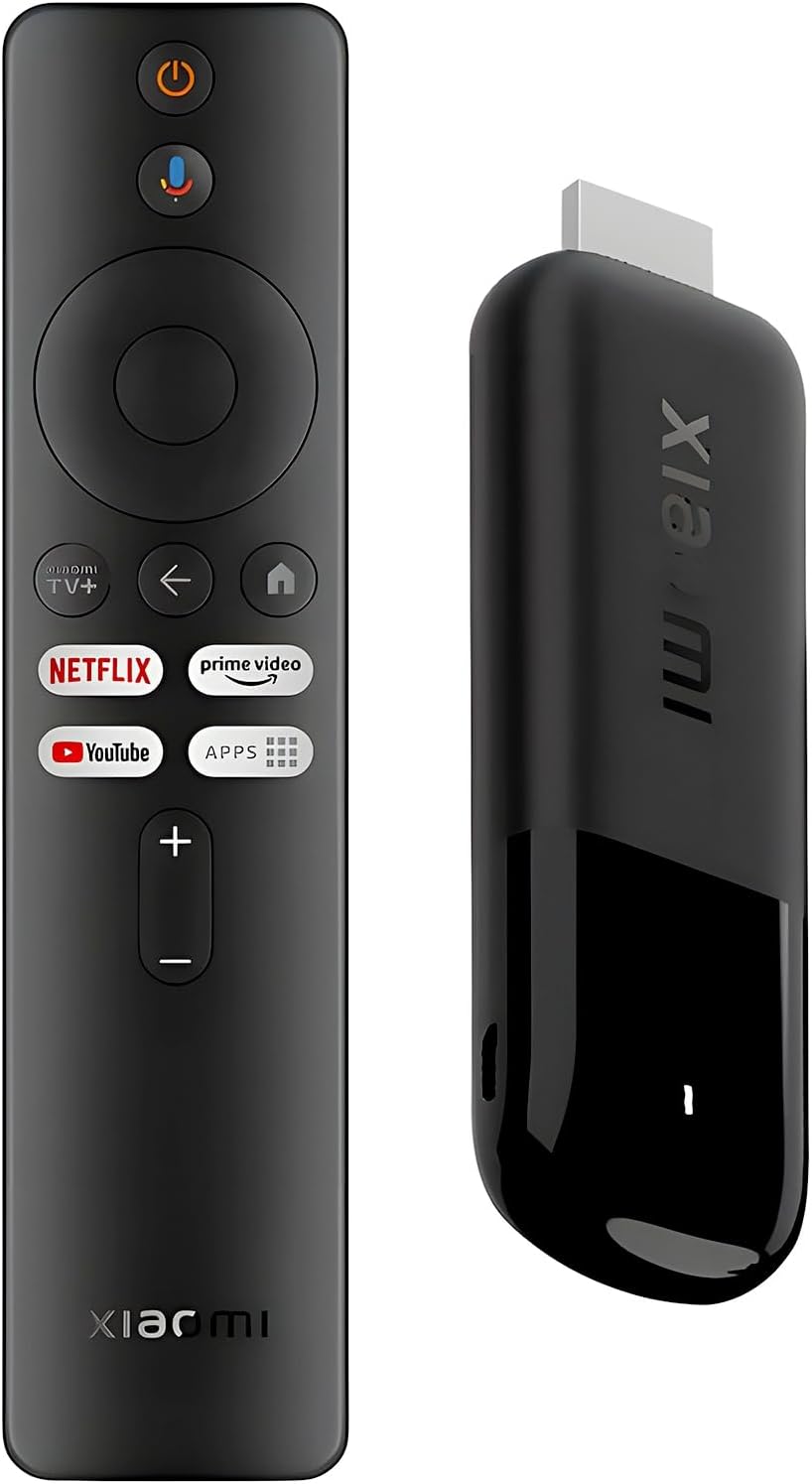
Xiaomi TV Stick 4K (2nd Gen) Streaming Media Player Device Google TV Cast Dolby Vision HDR10+ Atmos Dual Band Wi-Fi 6 with 360° Bluetooth Voice Remote Control
$69.99
Related Products







Product description


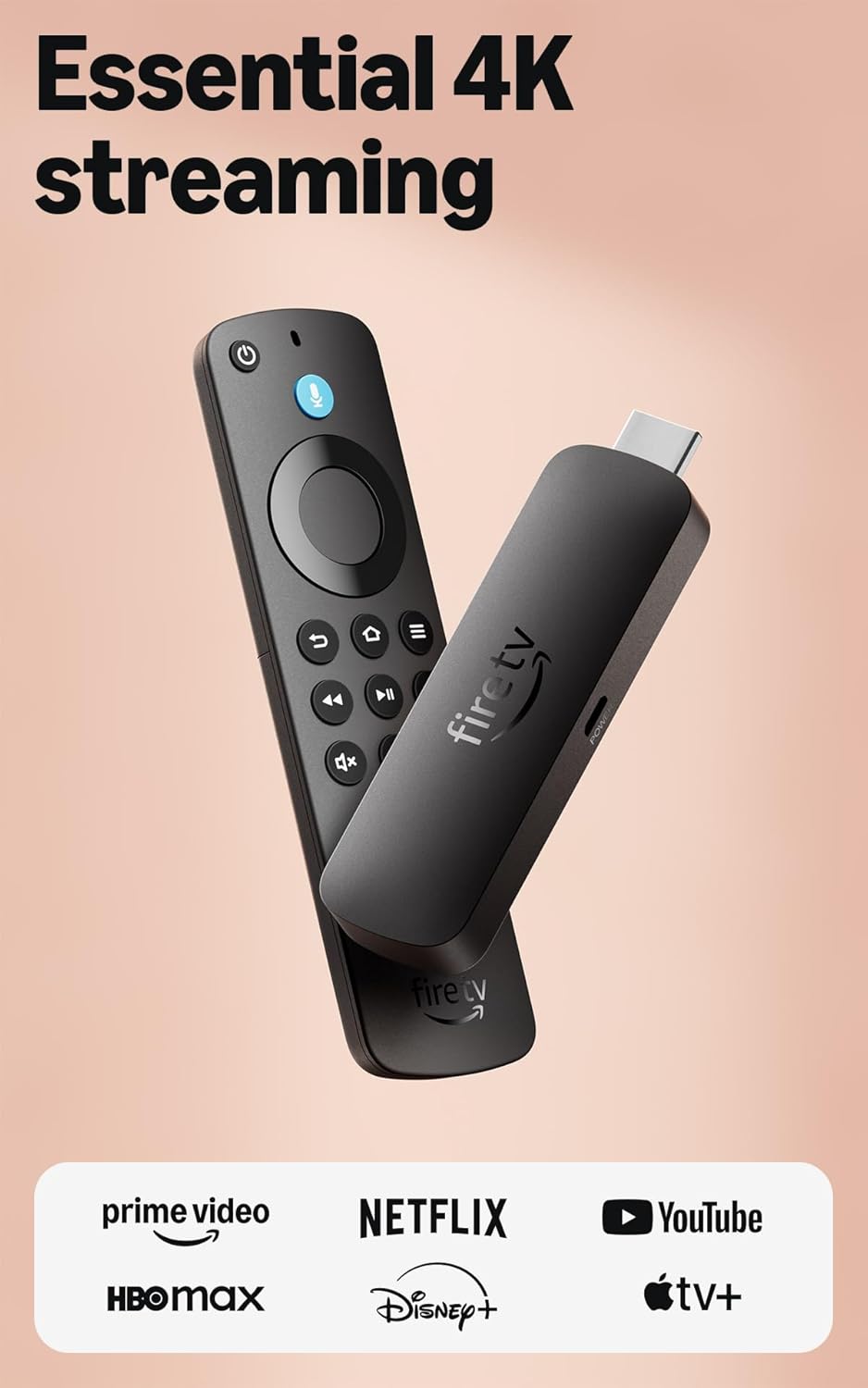
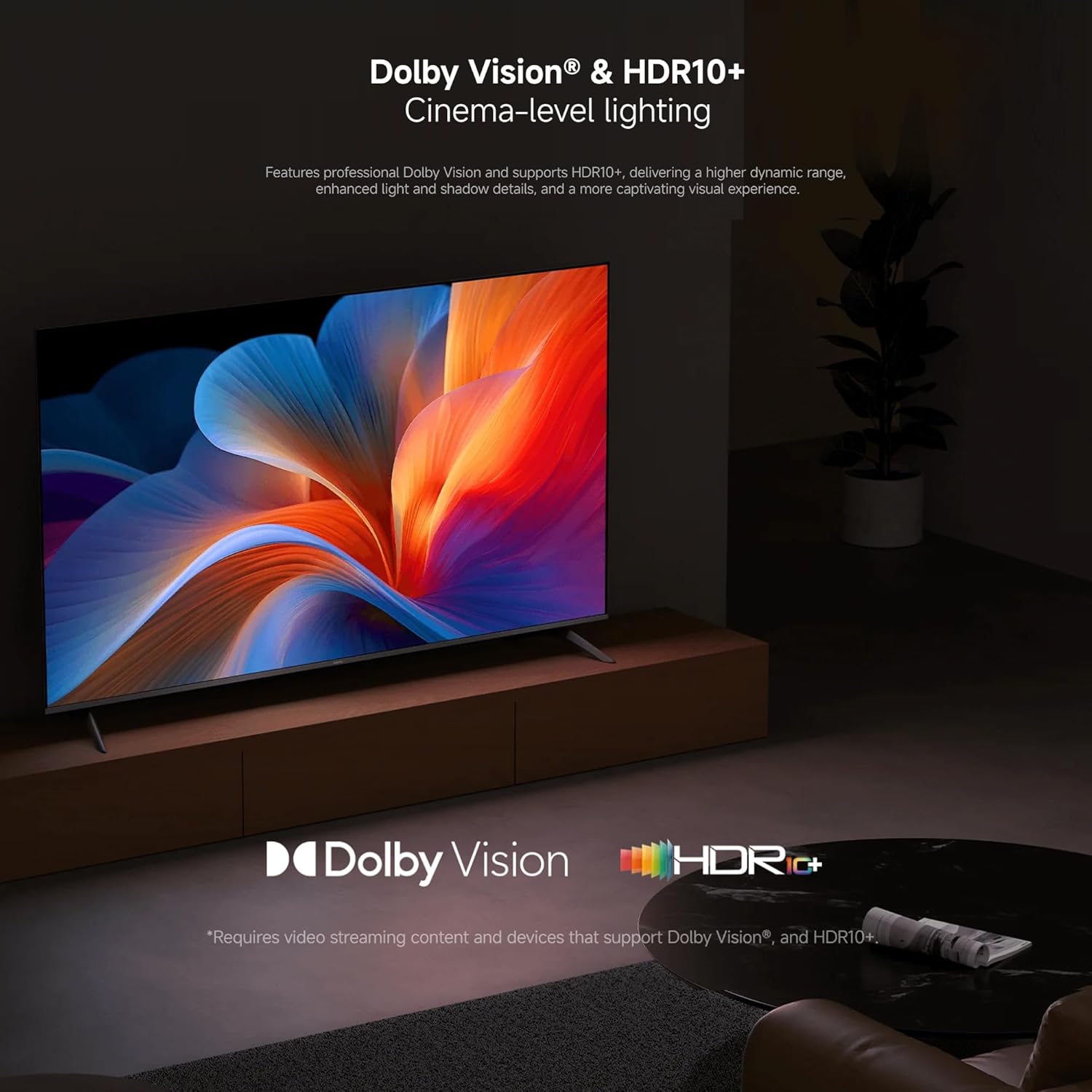
4K Streaming Device with Dolby Vision & Atmos: Thanks to the 4K decoding that provides stunningly clear picture quality for an unbelievable viewing experience. Features professional Dolby Vision and supports HDR10+ for a higher dynamic range, cinema-level lighting and shadow details, combined with Dolby Atmos and DTS:X enables panoramic surround sound for a true cinematic experience at home
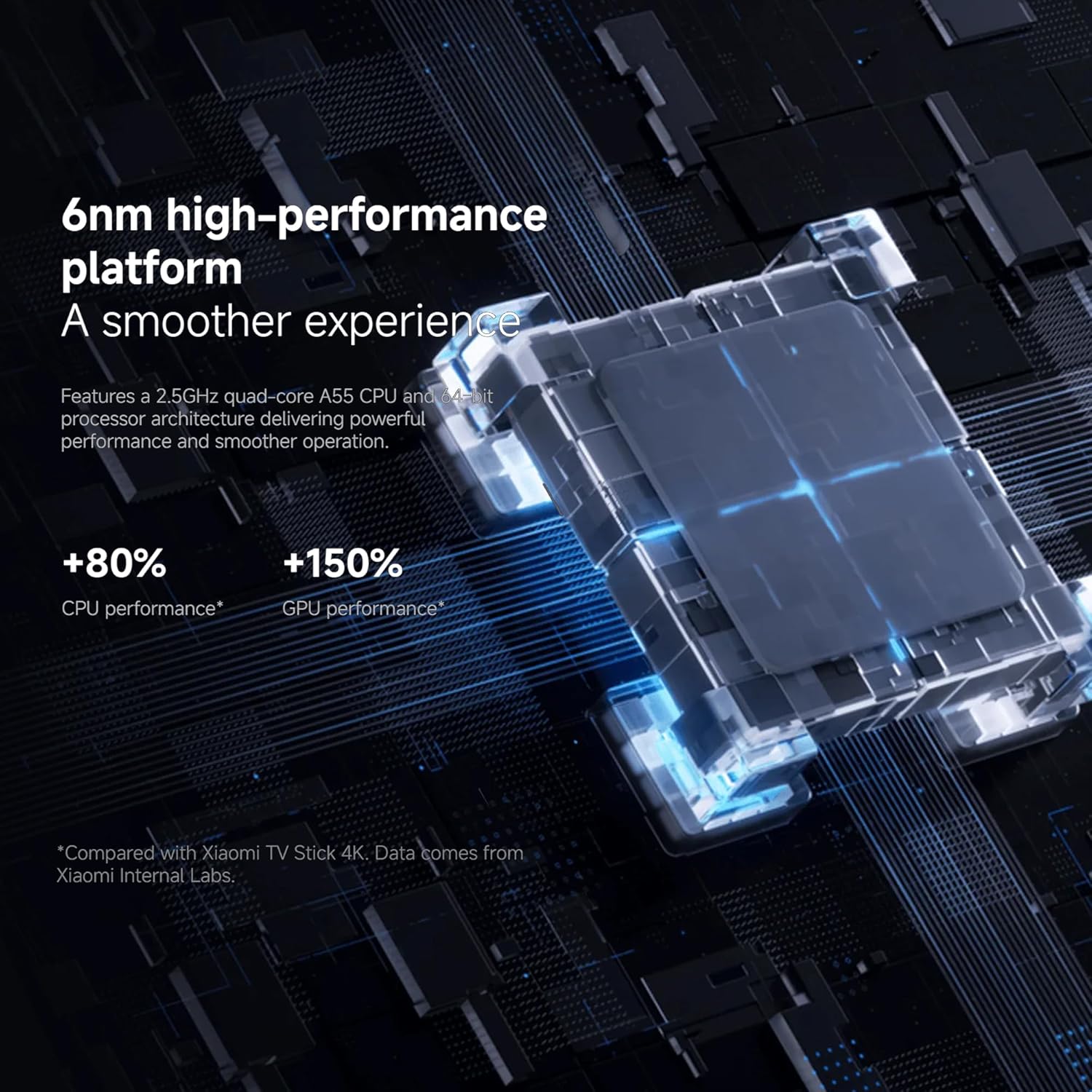
Smoother & Faster: Powered by an efficient 6nm high-performance platform with a 2.5GHz quad-core A55 CPU and 64-bit processor architecture, providing powerful performance and smoother operation. Features the latest wireless standard, dual-band Wi-Fi 6 delivering increased network bandwidth, faster transmission speeds, and seamless streaming and instant playback of online videos
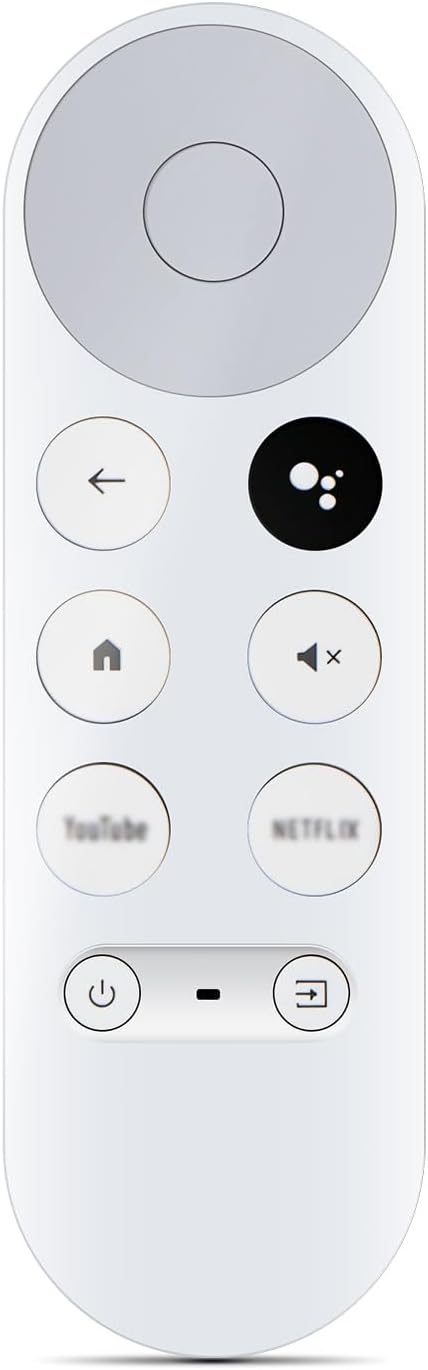
Smart Bluetooth Remote Voice Control: The intuitive Google TV organizes all your movies, stream apps, musics and shows from apps and subscriptions in one place. You can even get recommendations, answers and control smart home devices by pressing the Google Assistant button via the Bluetooth Voice Remote for hands-free control. Besides, access a growing library of free live TV channels
Easy Set Up & Plug-and-Play: Simply plug Xiaomi tv stick 4k (2nd Gen) into the TV’s HDMI port to upgrade your TV into a smart TV in second. You can watch news, movies, sports, reality shows, entertainments and more from free live tv streaming, no subscription is required. Besides, you can easily cast movies, shows, photos from your phone or tablet directly to your TV by using Google Cast app
Ultra-Slim, Lightweight & Portable Design: You can take your smart tv to any where due to the slim, lightweight, and portable design. Simply plug it into a hotel TV or projector to enjoy your personalized entertainment profiles, streaming apps and contents on the go
[
9 reviews for Xiaomi TV Stick 4K (2nd Gen) Streaming Media Player Device Google TV Cast Dolby Vision HDR10+ Atmos Dual Band Wi-Fi 6 with 360° Bluetooth Voice Remote Control
Add a review
$69.99
Anita Zhou –
Perfect for Non-Techy Parents (Like Mine!)
My parents are in their 70s and found modern smart TV interfaces confusing. I got them this stick and they love it! The voice search lets them just say what they want to watch. Casting photos from our phones to their big TV during family gatherings is a hit. The curated recommendations actually match their taste in classic films
Lawrence Guy Rundle –
Atreeamer
Good product
Cecilia Shi –
Theater-Quality Sound In a Tiny Stick
As an audio enthusiast, I was skeptical about sound from a streaming stick. But the Dolby Atmos support is legit! I connected it to my soundbar and the surround sound effect is immersive. Action movies feel like I’m in the theater. The voice control remote is super convenient when my hands are full with snacks.
Mike Mu –
Xiaomi TV Stick 4K (2nd Gen) Streaming Media Player
Xiaomi TV Stick 4K (2nd Gen) Streaming Media PlayerThe Xiaomi TV Stick 4K (2nd Gen) is a compact streaming device that turns almost any TV with an HDMI port into a smart entertainment hub. It runs on Google TV, giving you access to a wide range of streaming apps and services through the Google Play ecosystem. Setup is straightforward—just plug the stick into the HDMI port, connect power, sign into your Google account, and you’re ready to start streaming. The included 360° Bluetooth voice remote is responsive and convenient, allowing you to navigate menus or search for content using Google Assistant voice commands.In everyday use, the device performs smoothly for streaming movies, shows, and videos. Support for Dolby Vision, HDR10+, and Dolby Atmos helps deliver an immersive viewing and audio experience when paired with compatible TVs and sound systems. Dual-band Wi-Fi 6 provides stable and fast wireless connectivity, which helps reduce buffering and improves playback quality, especially when streaming 4K content. The Google TV interface also does a good job recommending content from multiple services in one place.Overall, the Xiaomi TV Stick 4K (2nd Gen) is a convenient and portable streaming solution that’s easy to install and use. Its compact design makes it ideal for travel or for upgrading older TVs that lack built-in smart features. If you want an affordable way to add modern streaming capabilities with support for high-quality video and audio formats, this little device gets the job done well.
Joe Smart –
A better product for people who don’t live in the United States
This Xiaomi TV Stick is a mixed bag that’s difficult to recommend if you live in the United States. But more on that later.Initial setup was easier than any other Android streaming device I’ve ever used, which was a shock. I’ve owned and tested many Android TV streaming devices from a wide assortment of brands and price ranges. With newer Android streaming devices (both sticks and boxes), normally setup first wants to use the Google Home App, which has never worked for me when setting up a device. The second option is manually setting up using on-screen prompts on the television and the device remote. But as soon as I plugged the Xiaomi TV stick in, I got a prompt on my smartphone asking if I wanted to set it up. Clicking on the notification linked my Google account, added the TV Stick to my Wi-Fi Network, and began the Google TV setup process on my television. So point one to Xiaomi.My main daily driver phone is a Xiaomi 13T Pro, but I also got the setup prompt for this TV Stick on my backup phone, a Moto G Power (2025), so the easy setup process doesn’t appear to be linked to owning a Xiaomi brand phone but rather to Google and Android.The streamer stick runs ATV 14 and the newer Google TV interface (the same as on Google’s own streaming device) instead of Android TV. They’re not entirely different, but Google TV is a bit slicker and does a better job of integrating recommendations from your streaming channels (providing you give Google permission) and also providing access to your digital library of movies and TV programs that would have been available in the Google TV app, which is integrated into the interface on Google TV occupying a home screen tab instead of requiring that you open a separate app.Even if you never purchased any digital content directly through the Google app, if you redeemed digital codes that came packaged with Blu-rays and DVDs or purchased digital content through apps like Amazon, Vudu, Apple, and Movies Anywhere, then some of that content may be available through Google TV, depending on the licensing restrictions for specific titles. It’s possible that you need to open a Movies Anywhere account (if you don’t already have one) and link the digital providers that you purchased content from (which can include Amazon, Vudu, Apple, Comcast, Microsoft, and others) before that content will be shared across the various streaming apps. And not all purchased content will show up in the other apps–the specific licensing for each movie or television program determines that. Still…I have nearly 900 movies in my Google TV library, even though I only purchased 2 or 3 of those titles directly from Google, and they can be browsed and played from a tab in the home screen with Google TV without opening a separate streaming app.The interface on the Xiaomi TV Stick can be a little sticky on the first day or two of use as you add your preferred apps and log into them, but there seems to be an optimization process built into ATV14 (similar to the Android 14 OS for smartphones), and interface responsiveness smooths out and improves after a day or two of use.The first problem I encountered was that the Xiaomi TV Stick was outputting video in 1080p even though I have a 4K television. After doing a little research, I found that my old Sony Bravia 4K only outputs 4K on HDMI inputs 2 and 3. HDMI Input 1 was convenient (and similar to the installation photo shown on the product page), but it wasn’t going to work if I wanted 4K streaming. My AV receiver goes into one of the two 4K capable inputs on my television, and the other input was too close for the TV Stick to directly plug into. Thankfully, Xiaomi includes an adapter precisely for that scenario, so I was able to plug the adapter into the HDMI port I needed, then plug the streaming stick into the adapter (pictures 2 and 3 show what this looked like with my television).So now I was getting 4K streaming, but some content had an overly processed look for my tastes. This is where taking a dive into the settings is necessary. By default, the Xiaomi TV Stick is set to use AI to convert SD and HDR content into Dolby Vision. Some people may like the way this looks–especially if they use the default settings that their televisions shipped with, which is usually a demo mode that makes everything unnaturally bright. If you prefer a more cinematic and natural look, then you want to go into the picture settings on the Xiaomi TV Stick and change the picture from the default (let the device choose output) to always match content, which will play SDR and HDR content without converting everything to Dolby Vision. For me, changing this setting massively improved the video quality–but many people may prefer the default setting, which makes content brighter and colors richer, even when that isn’t what the source was originally intended to look like.I encountered one genuinely annoying problem, which is that the Xiaomi TV Stick kept turning my television on and simply wouldn’t stay powered off. Basically, any time I walked into the living room when the television was supposed to be off, it was turned on and showing the Xiaimi screen saver. I changed the power mode from Optimized to Power Saver, which was supposed to prevent the streamer stick from turning on except when there were updates, but the Xiaomi TV Stick would never stay off for as long as an hour without turning itself (and my television) back on. There would often be a message that the TV Stick was going to power off due to inactivity unless I hit a button on the remote. Then the steamer stick would shut off along with my television–only to power on again sometimes as soon as 5 or 10 minutes later.There are two potential solutions–neither of which I bothered with because I already have a much higher-end Android streaming box hooked up to the same television, so it simply wasn’t worth the effort needed to keep the Xiaomi TV Stick installed.Solution number one would be to disable the HDMI CEC functions in the settings of the streaming stick. HDMI CEC is what allows one-click play to work, so you don’t need to juggle multiple remotes–it’s what switches the TV on when you hit the power button on your streaming remote and also automatically switches the TV input to the correct one for watching content with that device. Since I have a setup with a television and an AV Surround Receiver without the CEC enabled, I would need to use separate remotes for my streaming box, television, and receiver. You can always try changing individual CEC Settings by trial and error to see if that fixes the problem, but that’s a hit-or-miss fix that can require days of troubleshooting and still not work in the end.The other possible solution is actually simpler– use the wall plug instead of getting power from a USB Port on the television, and get an adapter plug with an on and off switch. Those types of plugs are cheap and easy to find on Amazon and elsewhere. You plug the streaming stick into the adapter, which gets plugged into the wall outlet, and simply switch off power using the button on the adapter. The streaming stick cannot turn back on until you hit the power button on the adapter that it’s plugged into.Anyone using the Xiaomi TV Stick may run into this problem, but there are a couple of additional issues for folks living specifically in the United States that make recommending this streaming stick really difficult.One is price. Currently, there are tariffs in place designed to discourage Americans from purchasing Chinese products. As a result, this streaming stick costs nearly twice as much as it did before the tariffs, making it a terrible deal compared to streaming devices from Onn, Roku, or Amazon Fire, which are all significantly cheaper. Xiaomi also includes two apps (Patch Wall and Xiaomi TV+), which are not functional in the United States and cannot be uninstalled. These apps can be disabled, but even if you do disable them, that doesn’t change the fact that an entire tab on the home screen is dedicated to those two apps. The tab doesn’t go away even after you disable those two apps (and the icons still show up in that tab), so if you live in the US, you end up with an entire tab on the home screen that has no functionality.Final Verdict: This is a pretty good Android TV streaming stick on the whole, although the CEC functionality didn’t play nice with my Sony TV and Sony AV Receiver and kept turning both on. People with newer televisions or different brands in their homes may not have the same problem. Setup is super easy with an Android phone–the easiest I have ever come across with any Android streaming device. The biggest downside if you live in the United States is the price. Thanks to the effect of economic tariffs, you can get streaming devices from Onn, Amazon Fire, and Roku that have similar hardware for a fraction of the price of the Xiaomi TV Stick.
Joe D. –
Solid 4K streaming, but the port choice is dated
The Xiaomi TV Stick 4K (2nd Gen) performs exactly as expected for a modern Google TV device. The interface is responsive, and I haven’t run into any of the stuttering or app crashes that usually plague these smaller sticks. HDR and Dolby Vision trigger correctly on my OLED, and the Wi-Fi 6 support keeps the bitrates high enough that 4K content actually looks sharp. However, it is genuinely bizarre that a “new” device in 2026 is still shipping with a Micro-USB power port. It’s a minor annoyance once it’s tucked away behind the TV, but having to dig out an old cable just felt like a step backward compared to everything else in my setup. If you can overlook the legacy port, the actual streaming experience is top-tier.
James L –
Instantly make your standard TV or Projector ‘Smart’ with this new and upgraded 2nd Generation 4K HDMI TV Stick ( see photos ) enabling enjoyment of ultra HD immersive viewing with better dual-band WiFi 6 connection speeds and Dolby Atmos and DTS sound. The 2nd Gen incorporates the preferred ‘Google TV’ interface and optionally offers personalized recommendations based upon viewing history.From my observations, inspections, and initial usage, I find that the July-2025 upgrade to a 2.5GHz quad-core A55 CPU and 64-bit ARM G310 V2 GPU is noticeably superior and more responsive, and I am very pleased with the thoughtful design with 2 GB of RAM and 8 GB eMMC storage, noteworthy Xiaomi build quality, promise of long-term reliability, value at price point, and overall exceptional performance. Highly recommended.Powered by the supplied Micro-USB connectorized cable connected to the supplied USB-A 5V/2A power supply and controlled by the supplied Bluetooth 5.2 Remote, this compact 4.2” (10.7cm) x 1.2” (3cm) x ).6” (1.4cm) device plugs into a spare HDMI port (optionally with the supplied HDMI extender cable in tight spaces) immediately transforms to a fantastic video streaming experience.Sadly, 2 preinstalled APPs [ ‘Xiaomi TV+’ (generally Europe-oriented) and ‘Patchwall’ customized content platform (mostly popular in India) ] result in Regional-error messages or just a blank screen in North America, but if desired, they can still be accessed with the installation of any VPN APP. The APPs cannot be deleted, but can be ‘disabled’, removing the icon from display and thankfully disabling the dedicated button on the Remote.While numerous standard APPs are offered on-screen for easy download and installation, the more adventurous will be quite happy to note that device also offers compatibility with a multitude of additional non-standard APPs upon installing, familiarizing and mastering the ‘Downloader’ APP and appropriate security setting adjustments.It is also noteworthy that inserting a user-supplied ‘Micro USB to USB-A OTG Cable Adapter with Micro USB Power Cable’ does indeed permit plugging-in external USB-A devices such as a USB Flash Memory Stick, mouse, keyboard, mini-keyboard, or suitable game hand controller.To increase and stabilize connection speeds, the device also supports the insertion of a user-supplied plug-and-play (no drivers required) ‘Micro USB to RJ45 Gigabit Ethernet Network Adapter’ for a superior wired internet connection from your router, powered by the supplied 5V/2A power supply.In side-by-side comparison I achieved more than twice the WiFi speed over my old 3rd Gen HD TV Stick and 3x the speed with Ethernet connection. Popular Benchmark tests indicate more than 3x better Sling Shot Overall Score results with this Xiaomi 2nd Gen Stick.As an additional observation, it is very comforting to note that the power supply Transformer device is marked with ‘c-UL’ (signified by the “C” at the eight o’clock position outside the UL mark), indicating the equipment is recognized as approved to Canadian standards ( see photo ).
James –
Really great. Turns my monitor into a smart tv.Tested with my existing smart tv too and the apps were easily migrated. Easy to set up – Accounts linked easily with google.My one complaint is that some of the apps are a little slow to load. The video is fine and audio is fine. No lag. But the device itself is a little slower than the native apps on the Samsung. Overall very pleased. If you’ve got a computer monitor that you want to turn into a smart tv, this will do it.
Seb & Ally –
The remote is a thing that completely ruins this device for me. I was excited to Xiaomi TV Stick to replace my trusty ‘Chromecast with Google TV 4K’ which is many years old and laggy even when browsing the home screen. Unfortunately Xiaomi remote has buttons that click so loud that it drives me crazy when changing channels or volume at night.I recorded a video where I compare click sound between the two remotes, the difference is huge (although I have to admit that in reality Chromecast remote still does a soft audible click sound but it barely registers on the video).The bottom line of that is that Xiaomi remote sounds cheap and plasticky and Chromecast remote sounds soft and almost luxiourious in comparison (it’s like closing door sound difference between a basic car and a Lexus).Other problem I found with the device is the microUSB port. I don’t think it should still be used in 2026 and not at this price point. It didn’t work with any of my USB hubs, so I couldn’t test the ethernet connection. Supposedly it will work with right OTG cable.Besides the above things the experience is quite good. The system seems to be a lot snappier than my Chromecast. You can install all the apps you need from the Play Store. Unfortunately the device comes with 2 bloatware apps from Xiaomi.My overall verdict would be: take it if you don’t mind the remote and are fine with just using Wi-Fi.